The Ground Schedule
The ground schedule in the MCS is a scheduling system that allows absolute- and relatively-timed jobs to occur, allowing you to plan schedules based around certain events. The ground schedule can be accessed from the menu via Monitor → Time based schedule, not to be confused with the on-board schedule builders found under the Tools section of the menu and covered in [sec:onboardSchedule]. It can also be accessed from the toolbar via the button highlighted in The ground schedule is accessed via the toolbar.

Upon start up the ground schedule will automatically reactivate and upon shutdown the ground schedule will deactivate. Jobs scheduled for periods when the MCS is not currently running will never be executed.
The ground schedule is managed by the Time schedule view as shown in Time schedule view. Ground schedule entries can have an absolute timestamp, or they can be timed relatively to another entry, with an offset specified in seconds. With this in mind a relative schedule entry can be relative to another relative schedule entry, all the way back to a ‘root’ absolute entry. Offsets can be set to negative or positive – negative offsets mean the relative entry will trigger before the trigger of its parent.
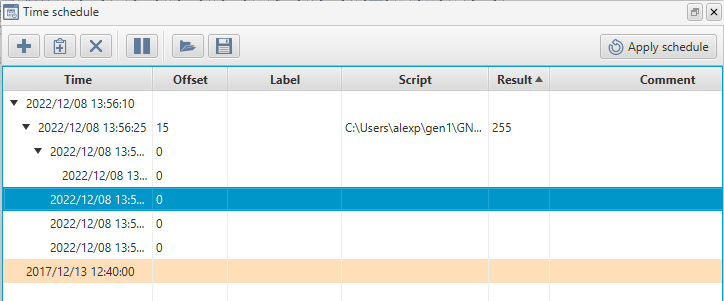
Clicking the plus button will add an absolute schedule entry with the time set to the current MCS time. Selecting the new entry and clicking the smaller plus button will add a relative entry. The offset can be edited by clicking on the offset cell for the newly created entry. The computed time to execute the relative entry is updated when you update the offset.
Updating the timestamp of an absolute entry will update all timestamps for the other entries underneath or relative to it.
Edits to the ground schedule are only applied and saved once you click and confirm the Apply schedule button at the top right of the view.
The pause button will temporarily prevent any scheduled entries from being executed. Un-toggling the button will resume execution.
Entries can be removed using the delete button on the toolbar, or by pressing the delete key with entries selected.
The ground schedule entry
The ground schedule entry is composed of several fields:
-
Scheduled time (this is computed for relative entries)
-
Offset in seconds (this does not exist on absolute entries)
-
Label – a free-form text value that will be shown when referring to this schedule entry in logs
-
Script – the path to a script to execute when this schedule entry is triggered. This is optional, an entry without a script may be used as an anchor point for further relative entries
-
Result – once the entry has been triggered the last statement of the script to execute will be dumped to this value, this value is read only
-
Comment – a free-form text value that will be shown only when viewing the Time schedule GUI
To edit the label, comment or script of an entry, simply click the relevant row and column. You can try pointing an entry to the example.groovy script and scheduling it to occur in the future. (Remember to click the Apply schedule button to apply your changes.) The example.groovy script will send various log messages to the system log. You can verify it executes successfully by keeping an eye on the MCS Server console.
Importing and exporting
You can import and export ground schedules from the MCS. To export a ground schedule simply click the save button. To import another ground schedule click the open button. Remember to click the Apply schedule button to apply an imported schedule.
Colour indicators
Schedule entries are coloured depending on their state. The colours indicate success, warning and error states. Below is a table indicating the colours and their respective states:
| Colour | Schedule entry state |
|---|---|
Green |
A script successfully executed |
Amber |
A script did not execute, although its schedule time has passed |
Red |
A script tried to execute but failed |
White |
A script is scheduled to be executed in the future |
A success indication means that the schedule entry executed and returned with a non-negative number or a non-number.
An amber warning indication occurs when a schedule entry never executed – this could be due to it already being in the past when it was created or if the MCS was not active to service the entry due to it being shutdown or paused when the scheduled entry was supposed to occur.
An error indication is triggered when the script fails either on the MCS – either through a compilation or connection error, or on the flight-side when the script attempts to interact with the spacecraft and fails. If a script returns with a negative numerical value then this will also trigger a failure, to indicate that your intentions within the script failed.
External ground schedule polling
A mechanism in the MCS exists to poll the filesystem for external ground schedule entries to be imported into a running instance of the MCS. This allows you to place a ground schedule in the exported portable JSON format in a configurable watch directory which the MCS will then poll. The configuration settings are described in [sec:scripting_config].
A groundScheduleIngesterPollingDelay number greater than 0 indicates that external ground schedule polling should be enabled and the polling mechanism will occur based on this delay in seconds.
How the MCS treats ingested schedules depends on the name of the file. If the file is appended with add.json the entries stored in this JSON file will be added to the existing ground schedule. If the file is appended with new.json the entries stored in this JSON file will replace the entire ground schedule at once.
Once the MCS ingests a ground schedule it will either digest or reject the JSON file. If it successfully reads the schedule it will move the ingested file into the digested directory relative to the polled directory. If it fails to import for one reason or another an error will be printed to the MCS system log and the file will be moved to the rejected directory, again relative to the polled directory.