Getting Started Guide
Installation
This guide will take you through the installation process for MCS. This guide covers the system requirements, installation steps, product licencing, and initiating the MCS server and client.
System Requirements
Java Runtime Environment (JRE) |
Java SE 11 |
Open JDK 11 |
Operating System |
Ubuntu 16.04 LTS or higher |
Microsoft Windows 10 & 11 |
Extracting the MCS Client Server Distribution
The MCS Server and MCS Display (also known as the MCS client) are packaged as a single zip archive with the following naming convention: BAL-MCS-ClientServer-<version>-distribution.zip.
Download the MCS distribution archive from the Bright Ascension download server using the credentials provided in the introductory email and extract the archive to a suitable location on your workstation.
After the extraction is complete, your directory structure should look like so:
├── GNDSW
│   ├── BAL-MCS-Display-22.4.4-distribution.zip
│   ├── BAL-MCS-Server-22.4.4-distribution.zip
│   ├── Documentation
│   ├── Groovy
│   └── python
├── release.txt
└── version.txt
Extracting the MCS Client and Server
Navigate to the GNDSW directory and extract the BAL-MCS-Client-<version>-distribution.zip and BAL-MCS-Server-<version>-distribution.zip archives.
After the extraction is complete, your directory structure should look like so:
GNDSW/
├── BAL-MCS-Display-22.4.4-distribution.zip
├── BAL-MCS-Server-22.4.4-distribution.zip
├── Documentation
│   └── MCSUserManual.pdf
├── Groovy
│   ├── scripting-api-docs
│   └── services
├── MCS_Display
│   ├── configs
│   ├── data
│   ├── layouts
│   ├── mod
│   ├── runMCS_Display.bat
│   └── runMCS_Display.sh
├── MCS_Server
│   ├── cfdp_filestore
│   ├── configs
│   ├── data
│   ├── ground_schedule_watch
│   ├── incoming_procedures
│   ├── licence
│   ├── mod
│   ├── readme_export_control.txt
│   ├── runMCS_Server.bat
│   ├── runMCS_Server.sh
│   └── scripts
├── python
│   └── mcs_client
└── python.zip|
If you wish to install the MCS client and server separately, you can extract the archives to separate directories or machines. |
Licensing MCS
MCS uses a SaaS licence manager provided by Nalperion Zentile and requires a licence to run. The licence contains information about the licence type, asset limits, and expiration dates.
If you are installing MCS version 22.2 or greater, you will need a licence code. You should have received this as a licence.properites file in the introductory email after purchasing MCS.
|
The |
Nagivate to the GNDSW/MCS_Server directory and create a new directory called 'licence'. Copy the licence.properties file into the licence directory.
Ensure that the licenceCode property inside the licence.properties file contains your 17-digit licence number. Contact customer support if your licence number is missing.
You have now licenced MCS. The licence is automatically checked when the MCS server is started.
Running the MCS Client and Server
The MCS_Display and MCS_Server directories contain startup scripts to run the software. A .bat script is provided for running the software in a Windows environment and a .sh script is provided for Linux.
| Operating System | Ubuntu | Windows |
|---|---|---|
MCS Server |
runMCS_Server.sh |
runMCS_Server.bat |
MCS Display |
runMCS_Display.sh |
runMCS_Display.bat |
Navigate to the MCS_Server directory and start the server using the relevant script below.
Ubuntu
$ . MCS_Server/runMCS_Server.shWindows
$ ./MCS_Server/runMCS_Server.batShow expected output
13:12:46.845 [main] INFO  c.b.coast.util.SimpleConfig - Loaded configuration from file licence/licence.properties
13:12:46.847 [main] INFO  c.b.coast.mcs.McsServerMain - Checking licence...
13:12:46.906 [main] INFO  c.b.coast.util.SimpleConfig - Loaded configuration from file data/missionFilestore/config/licenceConfig.properties
13:12:47.589 [main] INFO  c.b.coast.mcs.McsServerMain - Application: BAL GenerationOne MCS Server Edition
13:12:47.590 [main] INFO  c.b.coast.mcs.McsServerMain - Licence level: Professional
13:12:47.592 [main] INFO  c.b.coast.mcs.McsServerMain - Version: 22.4.4
13:12:47.594 [main] INFO  c.b.coast.mcs.McsServerMain - Build: 06b2bd9ab292+
13:12:47.600 [main] INFO  c.b.coast.mcs.McsServerMain - Loading configuration...
13:12:47.600 [main] INFO  c.b.coast.util.SimpleConfig - Loaded configuration from file configs/mcs.properties
13:12:47.600 [main] INFO  c.b.coast.mcs.McsServerMain - Setting MCS timezone to: Z (UTC+0000)
13:12:47.601 [main] INFO  c.b.coast.mcs.McsServerMain - Initialising framework...
13:12:49.066 [main] INFO  c.b.coast.mcs.McsServerMain - Creating MCS backend...
13:12:49.466 [main] INFO  c.b.coast.util.SimpleConfig - Loaded configuration from file data/mcsConfig.data
13:12:49.665 [main] INFO  c.b.coast.mcs.McsServerMain - Initialising MCS backend...
13:12:50.465 [main] INFO  c.b.coast.mcs.McsServerMain - MCS backend initialisation complete
Navigate to the MCS_Display directory and start the MCS client using the relevant script below.
Ubuntu
$ . MCS_Display/runMCS_Display.shWindows
$ ./MCS_Display/runMCS_Display.batShow expected output
13:15:40.793 [JavaFX-Launcher] INFO  c.b.coast.mcs.display.McsClientMain - Creating loggers...
13:15:40.796 [JavaFX-Launcher] INFO  c.b.coast.util.SimpleConfig - Loaded configuration from file configs/display.properties
13:15:40.800 [JavaFX-Launcher] INFO  c.b.coast.mcs.display.McsClientMain - Application: GenerationOne MCS Display
13:15:40.815 [Thread lockup watchdog] INFO  c.b.coast.util.ThreadWatchdog - Logging thread information to: /tmp/___BAL_rMCS_thread_log2448383295762792531.txt
13:15:40.819 [JavaFX-Launcher] INFO  c.b.coast.mcs.display.McsClientMain - Version: 22.4.4
13:15:40.824 [JavaFX-Launcher] INFO  c.b.coast.mcs.display.McsClientMain - Build: 06b2bd9ab292+
13:15:40.830 [JavaFX-Launcher] INFO  c.b.coast.mcs.display.McsClientMain - Connecting to MCS server: localhost:50051 (localhost:50051)...
13:15:44.831 [JavaFX-Launcher] INFO  c.b.coast.mcs.display.McsClientMain - Connected to MCS server
13:15:44.831 [JavaFX-Launcher] INFO  c.b.coast.mcs.display.McsClientMain - MCS display initialisation complete
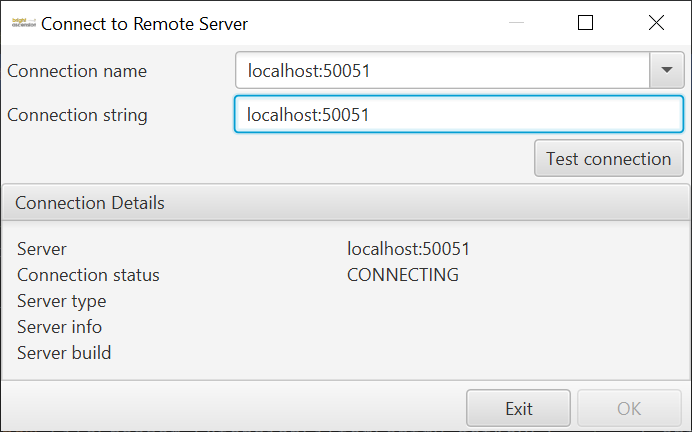
On first starting the client, a connection dialog is displayed.
|
Multiple instances of the MCS client can be run simultaneously and connect to the server. |
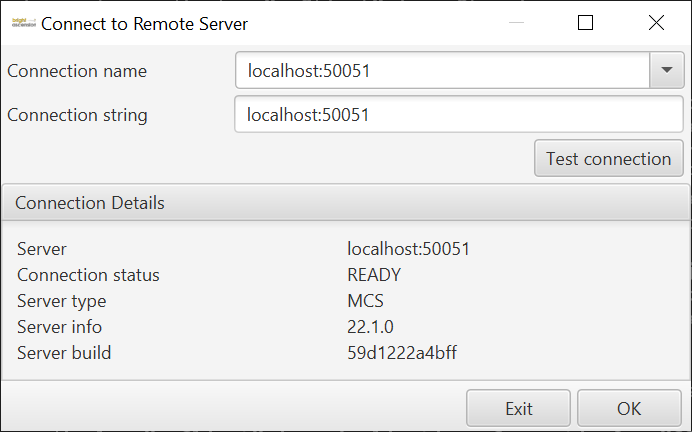
When a connection to the server is established, it will automatically start the MCS client.
|
The MCS client requires an active MCS server connection to start. If the TRANSIENT_FAILURE error is reported in the Connection status details, you may need to retry the connection by selecting the Test connection button. If the problem persists, ensure the MCS server is running and the connection details are correct. |
|
Holding the shift key during the connection dialog will interrupt the automated startup. You can then manually adjust and save different connections by updating the connection name and string in the relevant text boxes. After editing or selecting the connection details, select the Test connection button. If a connection to the server is established, the Connection Details will be displayed and the OK button will be enabled. Select the OK button to start the MCS client. |